Deploying OpenClaw
Server and system setup
Tencent Cloud Lighthouse instance: 4 CPU cores, 4GB RAM, 70GB system disk
Ubuntu 22.04.5 LTS 64-bit — ChatGPT recommended this as the most compatible option.
Installing OpenClaw
Update the system and install dependencies
# Update the system
sudo apt update && sudo apt upgrade -y
# Install base dependencies
sudo apt install -y git curl wget unzip build-essential
# Install nvm
curl -o- https://raw.githubusercontent.com/nvm-sh/nvm/v0.39.7/install.sh | bash
source ~/.bashrc
# Install Node.js
nvm install --lts
nvm use --lts
# Verify the install and check versions
node -v
npm -v
Install OpenClaw
npm install -g openclaw@latest
Start OpenClaw
# Initialise config and install
openclaw onboard --install-daemon
# install-daemon registers the OpenClaw Gateway as a background daemon: it runs
# silently, starts on boot, and restarts itself if it crashes
From ChatGPT:
| Setting | What it means | What it does | Recommendation | How to configure it if you skip it |
|---|---|---|---|---|
| model / auth provider | Choose your model provider and how you authenticate | Determines which models are available, how they’re called, cost, and latency | Pick the strongest model you have access to, or the most reliable provider — OpenAI / Anthropic / Ollama | Fill it in later via openclaw configure or by editing models.providers directly |
| filter models by provider | Filter models down to one provider | Keeps the model list manageable and avoids picking something unsupported | Beginners: stick to one provider. Advanced users: filter precisely | Use openclaw models list + openclaw models set <model>, or edit the config file |
| default model | The model used by default | Determines which model the agent calls as its primary | Set a strong model as primary and a cheaper one as fallback | Set manually: openclaw models set <model>, or edit agents.defaults.model.primary |
| model check | Checks that the model is reachable | Verifies the API key is valid and the provider is up | Do this — it’s the only way to be sure the agent will actually work | Run manually: openclaw models status |
| select channel | Choose the bot’s entry channel | Determines how users interact with the agent | Telegram/Discord/Web/UI — use Web/CLI for local testing, Telegram or Docker + channel for production | Configure later via openclaw configure or the channels config |
| web search | Whether to enable web search | Lets the agent look up current information instead of relying only on training data | Turn it on for an assistant or anything that needs current info; turn it off in an air-gapped environment | Add a search tool later via the tools config |
| search provider | Choose a search engine | Affects search quality, result structure, and cost | Prefer a stable API, e.g. SerpAPI | Add it later via tool config or openclaw configure |
| hooks | Lifecycle hooks | Lets you inject custom logic — safety checks, logging, tool permissions | Beginners can skip this; required for security/enterprise setups | Add later by writing a plugin or editing the gateway config |
| How do you want to hatch your bot? | Determines how the agent gets initialized | Controls the creation flow and configuration complexity | Pick TUI — the two don’t conflict, the web UI is still reachable, but the TUI won’t be interactive until an LLM API is configured | Re-run openclaw onboard later, or edit the config manually |
Accessing the web UI remotely
Run this on your local machine’s command line, then open 127.0.0.1:18789 in your browser.
My first impression of the web UI for configuration wasn’t great — it’s clearly built for developers, not for casual users. The settings aren’t self-explanatory and there’s no inline help — for example, to configure the LLM API you have to type raw JSON into a text box, with no documentation on the expected format anywhere in sight. The TUI is honestly much easier to use.
# Open an SSH local port-forwarding tunnel, so a service running on the remote
# server is reachable from your own machine over the encrypted SSH channel.
ssh -N -L 18789:127.0.0.1:18789 your-username@your-server-ip
Configuring the LLM API
# Configuration command
openclaw configure
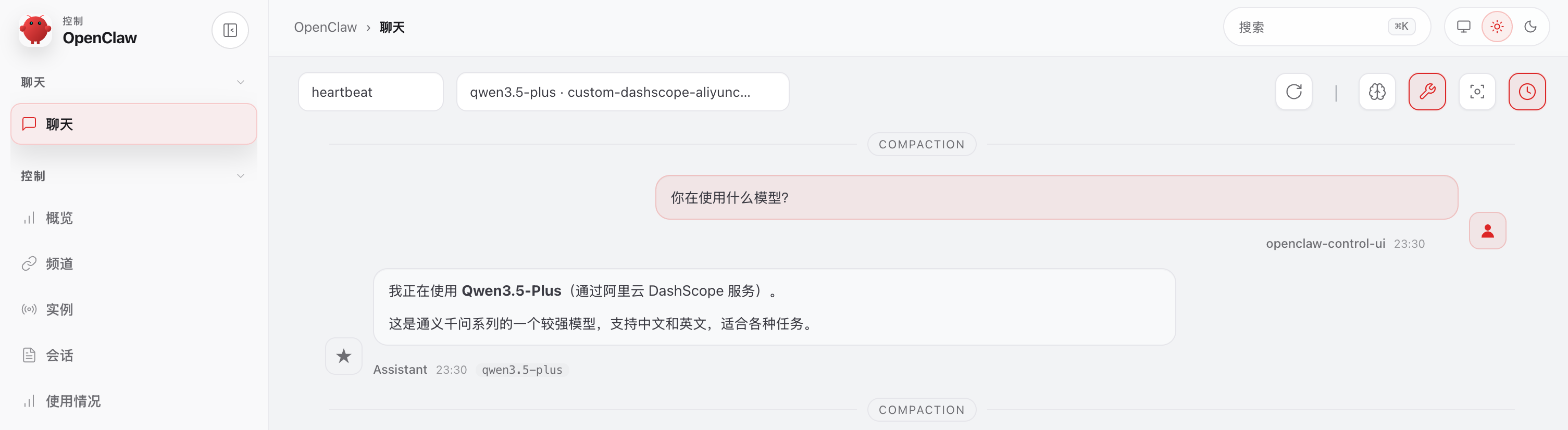
Setting up the QQ bot — chatting with “the lobster” over QQ
Sessions are isolated by entry point and session instance — the TUI and QQ chat are two separate main sessions, and they don’t share context or memory.
https://q.qq.com/qqbot/openclaw/
Setting up the agent
First contact: bootstrapping
Inside .openclaw/workspace there’s a BOOTSTRAP.md file. The first time you talk to the agent through the TUI, the LLM reads this file first, follows its instructions to work out who it’s supposed to be through the conversation, then rewrites files like agent.md and deletes BOOTSTRAP.md.
Worth noting: talking to the agent directly through the QQ bot does NOT trigger bootstrapping — you need to go through the TUI or the web UI for that.

Key configuration areas
Control layer — how it thinks
├── SOUL.md
├── model config
Memory layer — what it remembers
├── session   (short-term)
├── memory    (long-term)
├── RAG       (external)
Execution layer — how it gets things done
├── workspace
├── tools
├── skills
├── sub-agents
| Setting | What it does | Session-isolated? | Persistent? | Affects tokens? | Typical use |
|---|---|---|---|---|---|
| workspace | The agent’s working directory — files, code, run artifacts | Yes | Yes | No (indirectly) | File handling, code execution, task output |
| SOUL.md / AGENT.md | The agent’s core behavior rules (system prompt) | No (injected globally) | Yes | Yes (heavy) | Controls the agent’s strategy, persona, and how it executes |
| memory | Long-term storage (structured or unstructured) | Depends on config | Yes | Yes (moderate) | Remembering user preferences, historical info |
| session (main conversation) | The current conversation context | Yes | No (short-lived) | Yes (heavy) | Multi-turn dialogue, contextual reasoning |
| sub-agent session | A sub-agent’s own independent execution context | Yes (fully isolated) | No | Yes (light) | Running complex or long-running tasks |
| compaction | Summarizing/compressing a long context | Yes | No | Yes (reduces usage) | Keeping context length under control, saving tokens |
| tools | The set of tools the agent can call | No (global config) | Yes | No | Doing things externally — API calls, running code |
| skills | Pre-packaged higher-level capabilities (tool combos) | No | Yes | No | Reusable capabilities, e.g. a task workflow |
| model config | Model parameters (maxTokens, temperature, etc.) | No | Yes | Yes (heavy) | Controls generation behavior and cost |
| RAG / embeddings | External knowledge retrieval | No (usually global) | Yes | Yes (moderate) | Supplying long-term knowledge |
| Mechanism | Trigger | Time-dependent? | Runs in the main session? | Has context? | Creates a task record? | Key trait | Typical use |
|---|---|---|---|---|---|---|---|
| cron job | Time-based (exact time / cron expression) | Yes (exact) | Optional (main / isolated) | Optional (none if isolated) | Yes | Precise scheduling, can run isolated | Scheduled reports, reminders, batch jobs |
| heartbeat | Fixed interval (default 30 minutes) | Yes (approximate) | Yes (main session) | Yes (full context) | No | Periodic “check-in / think” | Inbox checks, notifications, status monitoring |
| hook | Event-triggered (lifecycle events, tool calls, etc.) | No | Depends on the event | Depends | No | Event-driven, immediate | Automation, intercepting/enhancing behavior |
- If there’s nothing that needs the agent to periodically check on its own, turn off heartbeat to save tokens. cron = I tell it when to act heartbeat = it periodically checks in on its own hook = something happens, it reacts automatically
Sub-agents and multi-agent setups
You can set up the main agent to spin off a sub-agent for complex, time-consuming tasks, and have it report the result back — which saves both tokens and time.
- Sub-agents are non-blocking: the main agent doesn’t wait for them and can keep talking to the user, and once the sub-agent finishes, it reports its result back and the loop closes.
- A sub-agent runs in its own session and doesn’t inherit the main agent’s context or
SOUL.md, which is what saves tokens. - Think of a sub-agent as a temp worker: it runs its task in the background and hands the result back once it’s done.
- Good fit for long tasks, parallel tasks, and specialized work.
You configure SOUL.md to tell the main agent when to spin up a sub-agent, and give the sub-agent its own prompt to define its identity and rules so it can do its specific job well.
You can also run multiple long-lived agents in parallel, each with its own workspace, memory, SOUL.md, and session.
- Useful for setting up multiple long-term “personas” — one that only writes code, one that only does research — each with its own memory and identity.
- Each can have different permissions, different models, and different messaging channels (WeChat vs. QQ).
Context window settings
My first impression: this thing burns through tokens fast. Even a simple exchange can cost tens of thousands of tokens, and if you’re using a weaker LLM that gets stuck in a reasoning loop, token usage can spike into the millions for a single hard task.
Set the context window size based on what the model can actually handle — for example, MiniMax 2.5 natively supports a 200k context window. A bigger context window makes the conversation flow better and cuts down on how often the system needs to compress information.
Trying out skills
Time management with a Notion database
https://clawhub.ai/xiangtaoxiao/notion-time-management-matrix
I built this on top of a Notion database template I’d already made (a four-quadrant time management matrix) as the data source, with OpenClaw hitting it through the Notion API. You add or close to-dos over WeChat chat, get automatic reminders as deadlines approach, and can pull related files/info and update progress on a task. See the Notion skill docs for the actual API calls.
- What’s better about this than the traditional way of doing it? Chatting over WeChat feels a lot more natural, and an AI assistant can add a bit of emotional warmth to it too 🐶
- Honestly, just keeping everything inside OpenClaw itself works the best functionally — the trade-off is you lose a nice-looking interface, and you need to guard against the LLM being flaky and corrupting your data.
- You can use OpenClaw’s own cron jobs to periodically check to-dos and send reminders. Under the hood, cron is just firing off an instruction to the AI through a specific session at a specific time.
Problems I ran into
- TRAE doesn’t follow OpenClaw’s conventions: fixed it by giving the agent a link to the OpenClaw skill docs and having it read them.
- After installing the skill, the agent didn’t pick it up: added a prompt in
TOOL.mdtelling the AI explicitly to use this skill, and also explicitly asked for it on the first message of a conversation. As for why the agent doesn’t automatically trigger the skill by semantic matching once it’s installed — my guess is OpenClaw’s system prompt or the agent’s own prompt already has a default way of handling to-dos baked in, and that takes priority. - Skill status shows “not ready”: run the command below to see which requirement isn’t met, then fix it.
openclaw skills check - Hard to debug — no visibility into the agent’s reasoning or tool calls: installed Clawmetry to fix this.
- The system mangled a path — extra spaces, wrong characters — so the command wouldn’t run. I asked GPT and made two fixes: renamed the skill’s folder to swap
-for_, and added./script/to the path in the prompt. After that it worked cleanly — the AI didn’t need to retry, it just ran successfully. - The AI’s task logic isn’t always very rigorous — I ran into a case where it acted purely from memory instead of reading the actual status file. In theory that’s the “smart” move, but if the prompt doesn’t require it, the AI won’t reliably notice when things have changed. (This was with MiniMax 2.5.)
- OpenClaw’s built-in memory isn’t great — right now the memory file has picked up a lot of unimportant, even outright wrong, content, and it’s badly polluting the context. Sometimes even when I explicitly point out an error and ask it to remember the correction, it still doesn’t get written to the memory file.
- Maybe worth trying calling the Notion API directly (i.e. the Notion skill) and customizing it so the AI understands what each database is for and how it’s structured — could that get me synced to-do and knowledge-base management?
Lessons learned
Prompt tricks that worked:
- Stop the AI from improvising: point it at the official docs and have it read them first, then explicitly forbid it from deviating from what the docs specify.
- Stop the AI from only fixing things locally instead of thinking about the whole picture.
- Work around some models being bad at handling tokens like
-and at concatenating instructions correctly: different models — and different temperature settings — vary a lot in how reliably they build paths and system commands. When that’s unstable, it’s better to hard-code the command as a tool and have the AI just call the tool with its output. This will probably get better as LLMs improve. - Stop the AI from always acting on memory: OpenClaw does have a memory structure, but if some key piece of data changes and the AI still acts on what it remembers instead of the current state, that leads to failures or corrupted updates. For anything that’s a critical setting, it’s better to require the AI to read the actual config file rather than pull it from context or memory — especially while debugging.