DesktopPet is a cat that lives on the macOS desktop. Clicking it opens a chat bubble, selecting an English word in any app shows its definition and adds it to a vocabulary list, and during an English lecture or talk it turns the audio into live captions and, once the session is over, writes the whole thing up as notes in Chinese. The project is open source on GitHub. Most of the code was written by AI coding agents such as Claude Code, while my part was defining the requirements and interactions, testing it through everyday use, and comparing and choosing the models for each stage.
Why I built it
Since I started my master’s abroad, almost all of my classes, talks and online meetings have been in English, and in class I often have several tools open at once: captions for the parts I can’t catch, a dictionary for unfamiliar words, and later the recording so I can go back and write notes. Products like Feishu Minutes already handle much of this well, but the features are spread across different windows and switching between them keeps breaking my concentration, and I was also curious how well locally deployed models would actually work.
What I wanted was a single entry point that stays on top of the desktop and can be called up at any time, with the tools I need for studying gathered in one place. For the character I used a silver-shaded British Shorthair I used to have, since a small cat that keeps you company is something people are far more willing to leave on screen all day than a tool panel. My original brief had only three items: a pinned desktop pet you can chat with, translation and a vocabulary list for English words that are typed or selected, and streaming captions while an English video plays. Before anything was built, I asked for a survey of existing open-source projects that could be adapted easily, and the plan was based on that.
Narrowing the scope first
The first version was adapted from an open-source virtual-avatar project that came with a lot of extras, including a character persona, text-to-speech, Live2D models and several window modes. Since the pet was meant for studying, I didn’t want features that had nothing to do with studying competing for attention, so I removed the persona and TTS and kept only the pet itself, chat and word lookup, leaving captions for the next step.
Removing the persona turned up an interesting problem. The prototype had a persona written from a config template, a character called “Naitang”, and even after it was deleted the name kept appearing in replies. It turned out the cause was my assistant’s memory store, which mixed two kinds of entries: dated event logs recording what happened at the time, which are harmless to keep, and profile entries describing the current state, which were correct when they were written but had never been updated along with the project. One of them still said “currently using the Naitang persona”, so it kept being pulled back in during retrieval. The fix was to keep the event logs and update the profile entries, and it made me realise that history and current state need to be managed separately in long-term memory, because old records do no harm, while a current state that isn’t kept up to date quietly becomes wrong information after a while.
Whether it stays open depends on the details
For a tool that lives on the desktop all day, how comfortable it feels depends much more on details such as focus, input methods, bubble placement, screen edges and animation timing than on how many features it has. After using it for a while, most of my change requests were about exactly these things. The chat bubble should follow the cat, flip direction according to which corner of the screen the cat is in and always stay inside the screen; clicking the cat opens or closes the bubble and clicking anywhere else dismisses it; the input field is focused as soon as the bubble opens, messages are sent with Enter, and there is neither a send button nor a close button; the candidate window of the Chinese input method must never be hidden behind the bubble; and the cat can be dragged onto an external display but never somewhere it can’t be found again, starting on the main screen by default.
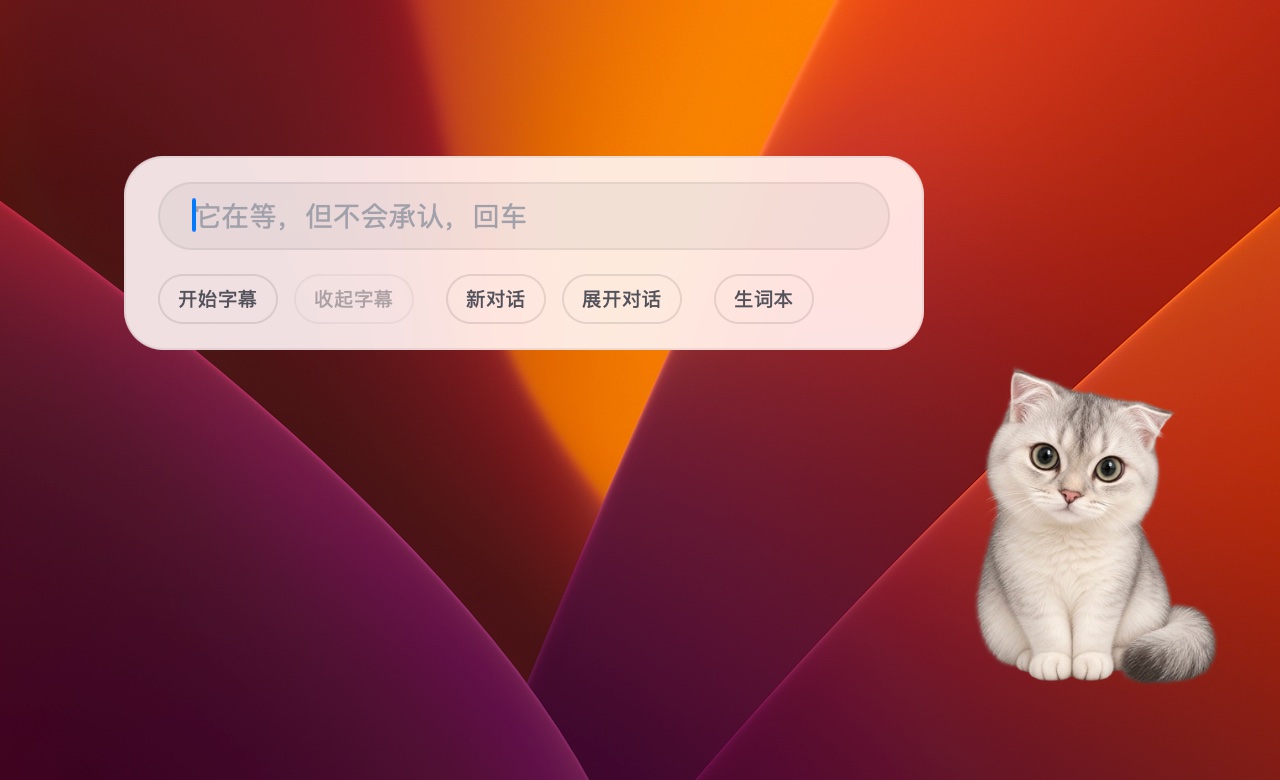
Clicking the cat opens the chat bubble with the input field already focused; press Enter to send, with buttons below for captions, conversations and the vocabulary list
I based the cat’s timing on a real cat as well. When nobody is paying attention it sleeps, a click makes it get up, wink and sit, and about five seconds after the bubble closes it yawns before eventually lying back down to sleep. The acceptance criterion for captions also came from the reading experience, which is that in the same video the pauses in the captions should never fall in the middle of a sentence.
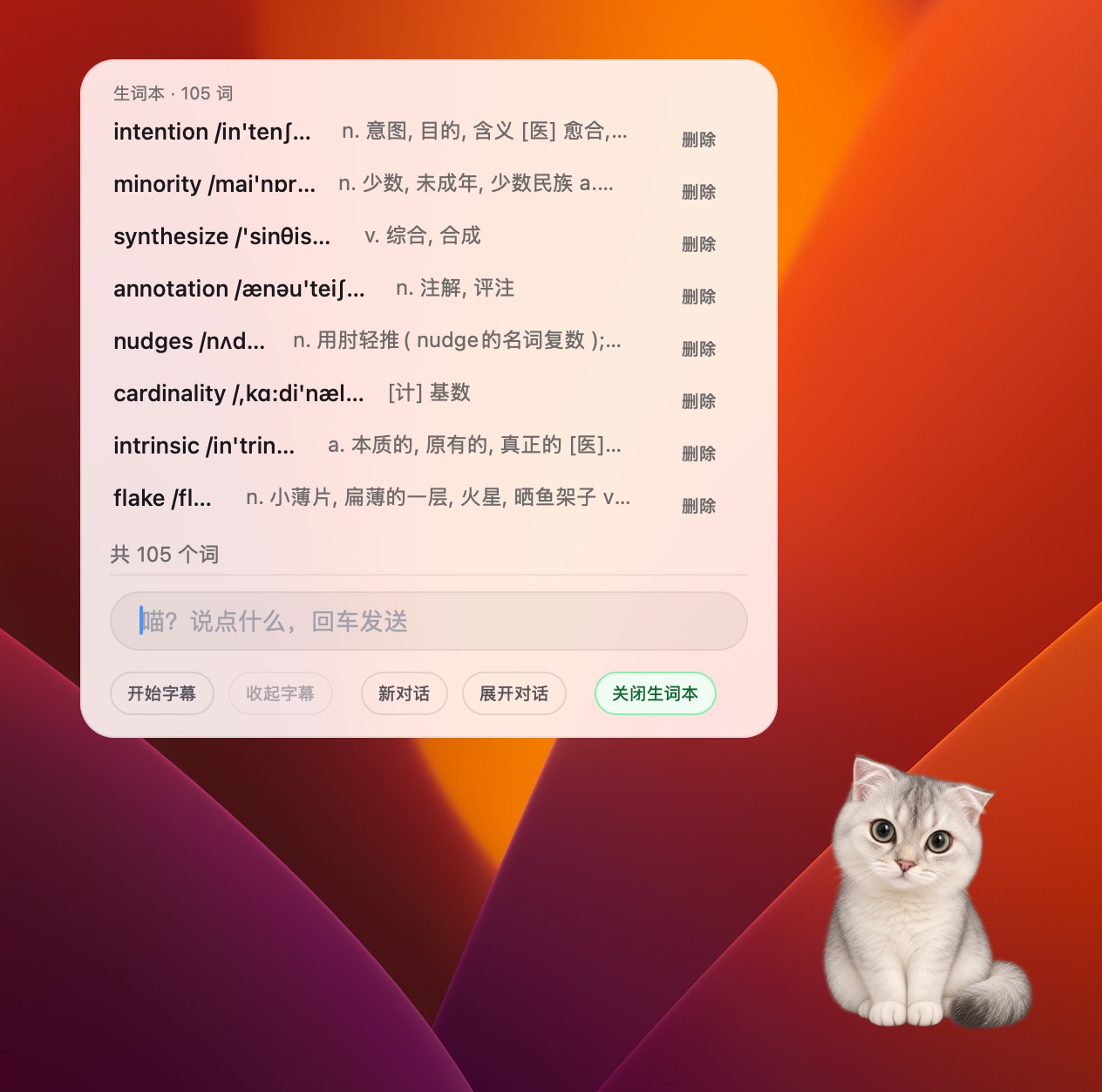
The vocabulary list, where every looked-up word is kept for review or removal
Captions: two scenarios, with models chosen per stage
Captions took more time than anything else in this project, and they also gave me a much more concrete sense of what local models can do.
Along the way I realised there are really two different scenarios here. Live captions for online meetings and lectures need very low latency, so the model has to support streaming output, whereas captioning an existing recording or video can tolerate some delay but has to process the whole piece in one go, which makes accuracy more important.
The first implementation cut the audio into fixed-length chunks and passed them to Whisper, so the captions only appeared in bursts about every six seconds and felt choppy to read. I then compared macOS’s built-in SpeechAnalyzer with Whisper large-v3 on the same lecture recording. SpeechAnalyzer refreshed about once a second and was 7 to 11 times faster, but it gives up understanding for speed: without broader context it can only guess from the current sentence, it was worse with technical terms, and giving it a glossary made no measurable difference.
So in the end I didn’t pick a single model but split the work into stages. This is the local setup I use every day:
| Stage | Setup | Reason |
|---|---|---|
| Live captions in class | Apple SpeechAnalyzer, from either the microphone or system audio, with the recording saved | It was the only option with low enough latency |
| Re-transcription after class | Claude Sonnet first extracts a glossary from the live captions, then a local Qwen3-ASR re-transcribes the recording using that glossary | In a 106-minute lecture with 8 terms known to be misrecognised, Qwen3-ASR got 7 right and Apple got 1 |
| Class notes | Sonnet reads the full transcript and writes notes in Chinese, then code checks every quote and timestamp | Batch summaries from small local models weren’t good enough |
The split was mainly about saving tokens, with repetitive, mechanical and high-volume work going to local models and work that requires reading the whole transcript and understanding context going to a large cloud model. Where model output couldn’t be trusted, I tried two kinds of guardrails. The code guardrail checks that every quote in the notes can be found in the original transcript and that its timestamp matches, and the small-model guardrail uses a small model for term correction, where Qwen 4B produced the same corrections as 9B at roughly three times the speed. For one 68-minute talk, all 41 quotes and 209 timestamps in the generated notes passed the checks.
All of these models were chosen by comparing their outputs directly on the same material, and I mainly looked at three things: size and performance, meaning whether my machine could handle the model and whether it was fast enough; structured output and instruction following, meaning whether it produced properly formatted captions or leaked the prompt into them; and recognition quality, including how much it hallucinated on background noise and how well it handled technical terms, numbers and formulas.
What isn’t good enough yet: the animation
I want the pet to look lifelike and move smoothly, and it isn’t there yet. I’ve tried several approaches and each has its own problem. The pets bundled with Codex and Hermes are low resolution, so the cat’s fur loses its texture; GIFs have a limited number of colours, which hurts the fur in the same way; and generating a video and then extracting frames is a lot of work and makes it hard to control the pet’s movements precisely, so an interaction like the cat stopping mid-run when clicked and turning to look at you would be difficult to pull off.
The current approach generates each frame with GPT and stitches the frames together in code. Each individual frame looks good, but GPT can’t keep frames aligned with each other, and the edges of the generated images shift slightly from one to the next, so the motion stutters when they’re played in sequence.
Working with AI
Almost all of the code in this project was written by AI coding agents. My job was to define the requirements and acceptance criteria, find problems through daily use, make the trade-offs, judge the results of the model comparisons and take responsibility for how the final product works. Partway through, the project was rewritten as a native macOS app, and before the rewrite the key behaviours were recorded as 20 regression cases so that the new version could be checked against them one by one instead of being accepted because it “looks about the same”.
The open-source version currently needs macOS 26 or later on Apple Silicon and connects by default to any OpenAI-compatible API, including a local Ollama or LM Studio. The “Qwen3-ASR re-transcription plus Sonnet notes” pipeline described above is my own local configuration and isn’t part of the open-source version’s default features.
The video at the top was also made with code: the visuals are 2D animation written in HTML and rendered frame by frame, and the background music was synthesised by a program.